Trust
Bellwick processes meetings on your computer by default. See what stays on the device, what uses the network, and what to check when reviewing the invited beta.
Updated November 9, 2026
How meeting data flows
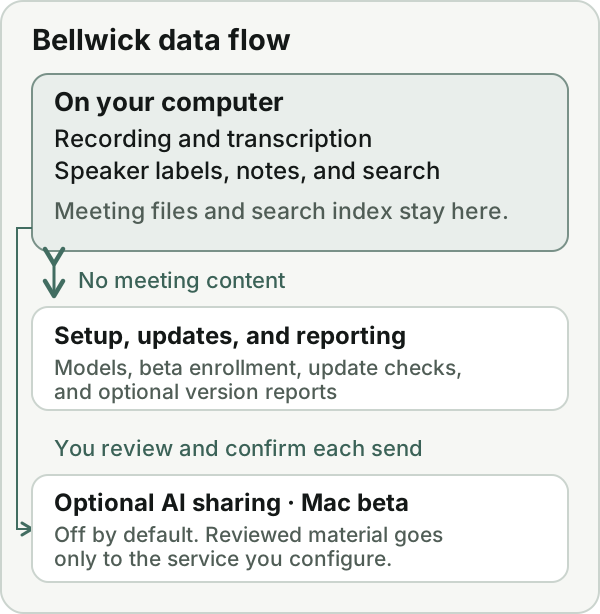
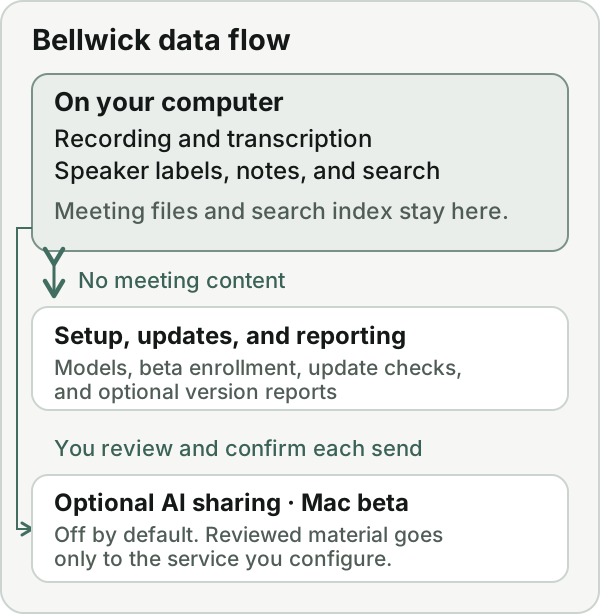
Recording, transcription, speaker labeling, notes, and search run on your Mac or Windows computer. Once the models are installed, meeting processing works offline. Setup, updates, and optional version reports use the network without sending meeting content.
What uses the network
- Model downloads. Bellwick downloads speech and language models during setup or when you request a model download. Meeting processing uses the models already on your computer. When a separate local model service writes notes (optional on Mac; the Windows beta uses one for notes), Bellwick asks that service, which listens only on this computer, to download its models, and the service fetches them from its own model registry.
- Beta enrollment and update checks. The beta service uses your access code to verify your invitation when required. Mac beta release builds check for a newer version at
hushmeetings.comwithout sending your beta code. The check can be turned off. The documented Windows beta updater sends your beta code and installed version shortly after launch, about every six hours while running, and when you check manually. It downloads and verifies an installer only when you choose to update. That Windows update check has no off switch. - Optional version reporting. In builds that support it, this is off by default and separate from update checks. Your beta code authenticates the request. The report record contains a private invite identifier, the running version, the platform, and the time the service received the report. The record does not contain the raw code, a device identifier, or meeting content. The first report and reports for a new version can go out immediately, followed by about one report a day while Bellwick is running. Those times show roughly when the app was running. You can turn reporting off at any time. A report shows what version the app says it is running; it does not verify that an update finished or that the app works.
- Optional AI sharing. This feature is available in the Mac beta and is off by default. If you enable it, Bellwick shows what will be sent to the service you configure. You review the material and confirm each send. Depending on the task and what you approve, this may include a question and excerpts or one meeting transcript, along with details such as meeting titles, dates, meeting types, participant names, speaker labels, and timestamps. Recording and automatic processing do not send meeting content through this feature.
Bellwick does not send meeting usage analytics or crash reports. Hosting providers may process ordinary connection details such as IP addresses and request times. See Privacy for how data is handled.
Where your data lives
Audio, transcripts, notes, the search index, downloaded models, and any saved speaker profiles are stored on your computer. Bellwick does not sync them to a cloud account. If you export a file, you choose where to keep or share that copy.
The app serves its interface from your computer and accepts connections on its loopback address. It has no separate sign-in and assumes one operator. Your computer's sign-in and disk protection restrict access to local files, but other processes on the computer can reach the local interface. Do not expose it through a reverse proxy, tunnel, or port forwarding; those can make remote requests appear local.
What to check in a beta build
- Mac signing. The Mac beta release process uses Apple Developer ID signing and the Hardened Runtime. Apple notarizes the installer image, which carries the notarization ticket so you can check it offline.
- Windows updates. The documented beta updater checks the installer's file size and SHA-256 hash before running it. These checks are separate from code signing: Windows beta builds are not yet code-signed.
- Software inventory. The Windows installer includes the CycloneDX software bill of materials (
sbom.json) and third-party notices. For the Mac SBOM, or for either platform's copy outside the installer, email beta@bellwicksoftware.com and include the platform and build you are reviewing.
What to assess before use
Assess the beta build, your computer, and your data handling requirements together. Local processing alone does not establish compliance or authorize use with restricted data. If you enable optional AI sharing, review the receiving service's access, storage, and retention separately.
Report a vulnerability
Email beta@bellwicksoftware.com with “Security” in the subject line. Include the Bellwick version, your operating system and version, steps to reproduce the issue, and the likely impact. Use a redacted example or synthetic recording instead of meeting audio or transcripts.
- Expect an acknowledgement within five business days.
- Fixes ship in new builds. You'll hear when a fix is available and can agree on a disclosure date. Please allow a reasonable window before publishing details.
- This policy covers the app and its local processing, release packaging, updates, and the invited beta download flow. It excludes services you configure, upstream projects, and findings that require prior control of the computer or operator's account. Report upstream issues to the affected project and let Bellwick know if the beta is affected.
- Fix support covers the current beta build and its designated rollback build. Update to the current build if you use an older version.